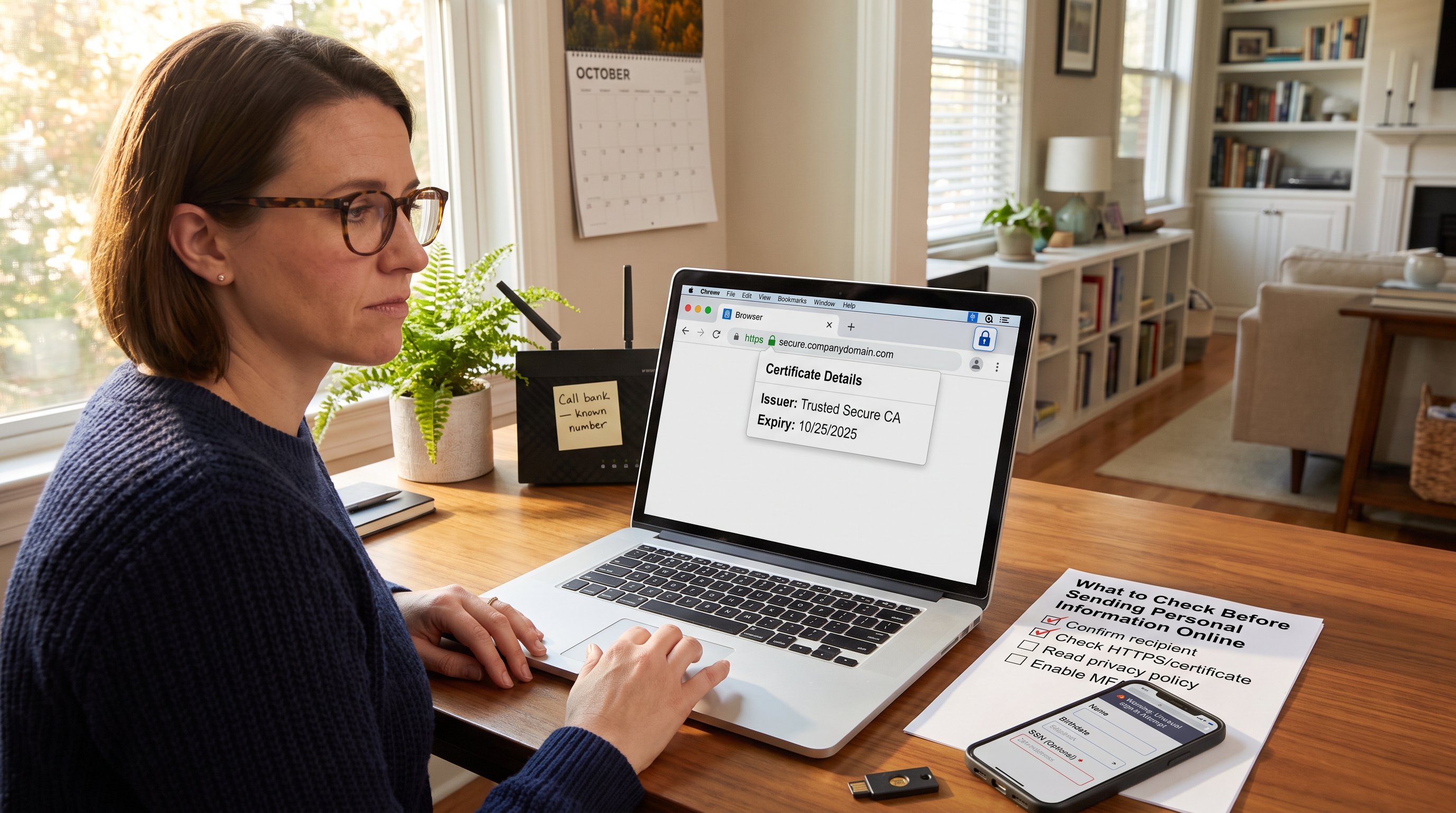
What to Check Before Sending Personal Information Online is a question many ask when a form, email, or chat asks for details. Begin by pausing: identify who is asking, why they need the data, and whether the request matches a recent transaction or account action. This short checklist prevents rushed mistakes, reduces identity risk, and gives clear steps to verify legitimacy before any sensitive data moves across the web.
Key Takeaways
- Before sending personal information online, always confirm the identity of the recipient and the reason they need your data to avoid scams.
- Check that the website uses HTTPS and has a valid SSL/TLS certificate to ensure your data is transmitted securely.
- Review the data fields requested and only provide the information necessary for the stated purpose, verifying the site’s privacy policy on data retention and sharing.
- Limit the information shared by filling only required fields and consider using disposable contact details to minimize privacy risks.
- Protect your device and accounts by keeping software updated, enabling multi-factor authentication, and avoiding public Wi-Fi without a trusted VPN.
- Be vigilant for phishing signs such as urgent requests, suspicious sender addresses, and mismatched domain names to prevent identity theft.
Confirm The Recipient And Why They Need Your Data
Confirm the recipient and why they need your data.
Before typing a single character, the person or organization requesting data must be identified and the purpose must be clear. If a banking app, government office, or online vendor asks for information, the request should align with a transaction the user initiated. Unexpected requests, especially those that pressure for immediate action, are red flags.
Specific check: call the organization using a known phone number (not one in the message) and confirm the request. When a recruiter asked a reader for a copy of their passport two hours after a LinkedIn message, a quick verification call exposed a fake profile. That saved the reader from handing over critical ID details.
Practical tip: ask why each field is required. If a form asks for full birthdate, Social Security number, and mother’s maiden name but the stated purpose is a newsletter, decline to provide those fields.
Related resources: if unsure about how to contact a site safely, consult the site’s contact page: readers can reach the WaveTechGlobal team through the contact crew page for help with verifying communications.
Recognize when a request is legitimate: it references recent activity (invoice number, account ID), comes from a corporate domain email, and matches known company processes. If these checks fail, do not send personal identifiers.
Check The Website And Connection Security Before You Send
Check the website and connection security before you send.
Always confirm the site uses HTTPS and shows a padlock in the browser address bar before entering credentials or financial data. HTTPS encrypts data in transit: without it, personal details travel as plain text and can be intercepted on public Wi‑Fi.
Concrete check: click the padlock to view certificate details. A valid certificate lists the issuing authority and the domain name. If the certificate is expired, issued to a different domain, or shows warnings, stop.
Example: a customer tried to pay a subscription on a site that displayed HTTPS but the certificate was issued to a misspelled domain. That single glance at certificate info prevented a fraudulent payment.
When on mobile, confirm the URL in the browser is correct before switching to an in‑app browser. Phishing pages often mimic look and feel: the connection check is the most reliable quick test.
If a site’s security looks suspect, use alternative channels: phone, official app, or a verified vendor portal. For guidance on spotting scams, the site’s article on how to use a scam checker explains tools that help validate sites and links.
Review Exactly What Data Is Requested And The Privacy Policy
Review exactly what data is requested and the privacy policy.
First, list the specific fields the form asks for. Then match each field against the transaction purpose. If a job application asks for bank account details up front, that mismatch is suspicious. Only provide data that the process legitimately needs.
Privacy policy check: read the retention and sharing sections. A clear policy states what is collected, how long it’s kept, and whether third parties receive the data. If the policy is missing, vague, or written in incomprehensible legalese, treat it as a warning.
Concrete detail: a subscription signup that states “data retained for 24 months” gives a measurable retention window. Compare that to a form that says “indefinitely”, that raises a privacy cost that the user should weigh.
Limit unnecessary fields: leave optional fields blank and use disposable answers where possible. For phone verification, a temporary number reduces exposure, WaveTechGlobal’s guide to temporary verification numbers explains practical options for single-use verification.
Honest tradeoff: sometimes giving minimal data slows a process (e.g., customer support may take longer). That delay is a reasonable cost compared with handing over sensitive identifiers.
Limit Unnecessary Fields And Understand Data Retention
Limit unnecessary fields and understand data retention.
Answer only required fields. If a form marks birthdate, full name, and address as mandatory for a low‑risk service, ask why each item is essential. Companies that require more than necessary often have broader data‑use policies.
Ask: who stores this data and for how long? A clear retention period, like 18 months after account closure, is better than language that suggests indefinite storage. Retention impacts breach risk: the longer data is stored, the greater the exposure window.
Real example: a small shop kept customer payment history for seven years: after a breach, those records were sold. A shorter retention policy would have reduced the amount exposed.
Practical action: when possible, delete accounts after use and export only the minimum data needed for records. Use a dedicated email or temporary number for one‑off services to limit cross‑site linking.
Protect Your Device, Account, And Network
Protect your device, account, and network.
Keep operating systems and apps updated, updates patch vulnerabilities attackers exploit. Use reputable antivirus and enable automatic updates where available. On a personal laptop, encrypt the drive and use a reputable password manager to generate and store complex passwords.
Account security: enable multi‑factor authentication (MFA) on all accounts that offer it. MFA stops many account takeover attempts even if a password leaks. Use hardware security keys for the highest protection on financial or email accounts.
Network hygiene: avoid entering sensitive data over public Wi‑Fi unless you use a trusted VPN. Public hotspots can host hidden packet sniffers. At home, set a strong router password and update the router firmware.
Behavioral warning: don’t copy sensitive numbers into chat apps or shorthand notes that sync to cloud services without encryption. One reader stored passport photos in an unsynced phone folder: when the phone was lost, the data remained offline and unrecoverable, an outcome they called a relief and a lesson.
For step‑by‑step checks before transmitting information, WaveTechGlobal’s guide on how to check your email for scam signs helps identify malicious messages that often request personal data.
Verify URLs, SSL/TLS Certificates, And Domain Authenticity
Verify URLs, SSL/TLS certificates, and domain authenticity.
Start by inspecting the domain. Phishers register lookalike domains, subtle misspellings or extra words that fool the eye. Copy the domain and compare it against the official site in a new browser tab.
Check the certificate: click the padlock, view the certificate details, and confirm the issuer and subject name. A certificate issued to a different company or an expired certificate are immediate disqualifiers.
Concrete habit: type the organization’s URL manually rather than clicking a link in an unsolicited message. If a message claims to be from a bank and links to a site, open a new browser and navigate to the bank’s official site yourself.
When in doubt, use public registries (WHOIS) to confirm domain age and ownership. New domains that mimic established brands are often malicious. For an extra layer, validate contact methods against the company’s official contact page or a trusted directory.
Recognize Phishing Red Flags And Impersonation Tactics
Recognize phishing red flags and impersonation tactics.
Phishing messages typically force urgency, request secrecy, or threaten account suspension. They may use poor grammar, mismatched sender addresses, or unexpected attachments. A message that pressures a user to act within minutes should raise immediate suspicion.
Example: a user received an email claiming a payment failed and demanded credential confirmation within 30 minutes. The sender address used a public email domain and the message lacked account identifiers. Contacting the vendor directly revealed the email was fraudulent.
Practical defense: hover over links to preview destinations, examine sender addresses for subtle changes, and never open attachments from unverified sources. Use a blocked list and report phishing attempts to the service provider.
For hands‑on checks, a scam detector or the WaveTechGlobal article on how to use a scam checker shows tools that flag suspicious links and domains.
About the Author