A new computer looks wonderfully uncluttered the first time you turn it on.
The desktop is clean, the browser is not carrying dozens of saved accounts, and the Start menu has yet to fill up with software. It is tempting to install messaging apps, game launchers, office tools, and browser extensions immediately, then transfer everything from the old computer.
This early stage is also the easiest time to establish a few sensible privacy settings. After several months of use, accounts, apps, permissions, and startup programs become much harder to review individually.
The setup does not need to become a complicated security project. Complete the first round of updates, arrange your everyday account, review app permissions, and prepare for travel and account recovery. These steps provide a cleaner starting point without getting in the way of normal use.
Finish the first round of updates
A new computer does not necessarily contain the latest software.
Several months may have passed between manufacturing, shipping, and the day you opened the box. Windows, hardware drivers, and preinstalled applications may all have received updates during that time.
Before installing a large collection of programs or transferring your files, open Windows Update and install everything currently available. Restart the computer when prompted, then check for updates again. Some system components must be installed in stages, so another group of updates may appear after the first restart.
Applications from the Microsoft Store have a separate update area. Open the Store, visit the library, and update the apps you plan to keep.
For hardware drivers, Windows Update and the computer manufacturer’s support tool are sensible places to begin. There is rarely a good reason to download an unfamiliar “universal driver pack” or optimization program on the first day. These utilities may include extra software or replace a working driver with one that does not suit the device.
Once the initial updates are complete, install the programs you already know you will use. If a problem appears later, it will be easier to identify which recent change may have caused it.
Set up your everyday account and sign-in options
Windows may request administrator access when you install software, enable a system feature, or change certain settings. Browsing, writing documents, joining meetings, and running most ordinary apps do not require elevated access throughout the day.
Use your regular account for everyday tasks and approve administrator prompts only when a specific change requires them. This adds little friction to normal use and limits the reach of an accidental command or questionable installer.
It is also worth configuring your preferred sign-in method at this stage. Windows Hello supports a PIN and, on compatible hardware, fingerprint or facial recognition. The PIN is tied to the device, so you do not need to type your Microsoft account password every time you unlock the computer.
If you connect a Microsoft account, check the associated phone number, backup email address, and other recovery options. An old number that can no longer receive verification codes may go unnoticed until you need to recover the account.
Review app permissions while the settings are easy to find
Camera and microphone access makes sense for a video meeting app. A weather service may use your location, while a photo editor needs permission to open image folders.
Grant these permissions as their features require them. An app that currently has no reason to use the camera, microphone, or precise location does not need permanent access simply to prevent a future prompt.
Windows privacy settings show which apps may use location data, the camera, microphone, notifications, and other system features. Some controls apply across the device, while others can be adjusted for individual apps.
Return to this page after installing your usual software. The aim is to make sure each open permission corresponds to a feature you recognize and use.
Browser extensions deserve similar attention. A password manager may need to read login pages, and a shopping tool may need to see the retail site currently open. If a simple extension asks to read every website, access downloads, and monitor the clipboard, check how those permissions relate to its main function before accepting them.
Prepare network tools before taking the computer away from home
A new laptop will probably leave the home network sooner or later. You may use it to check email at a hotel, synchronize files at an airport, or join a meeting from a café.
If you plan to use a VPN in these situations, install and test it beforehand. Choose a suitable free VPN for Windows, connect it at home, and open the websites and services you normally use. Check that account logins, file synchronization, video calls, and downloads work as expected.
A VPN creates an encrypted connection between the computer and a VPN server. Websites then see the server’s public IP address rather than the public IP assigned by the current network. This adds a layer of privacy to the connection, although it does not inspect every downloaded file or remove permissions already granted to an app.
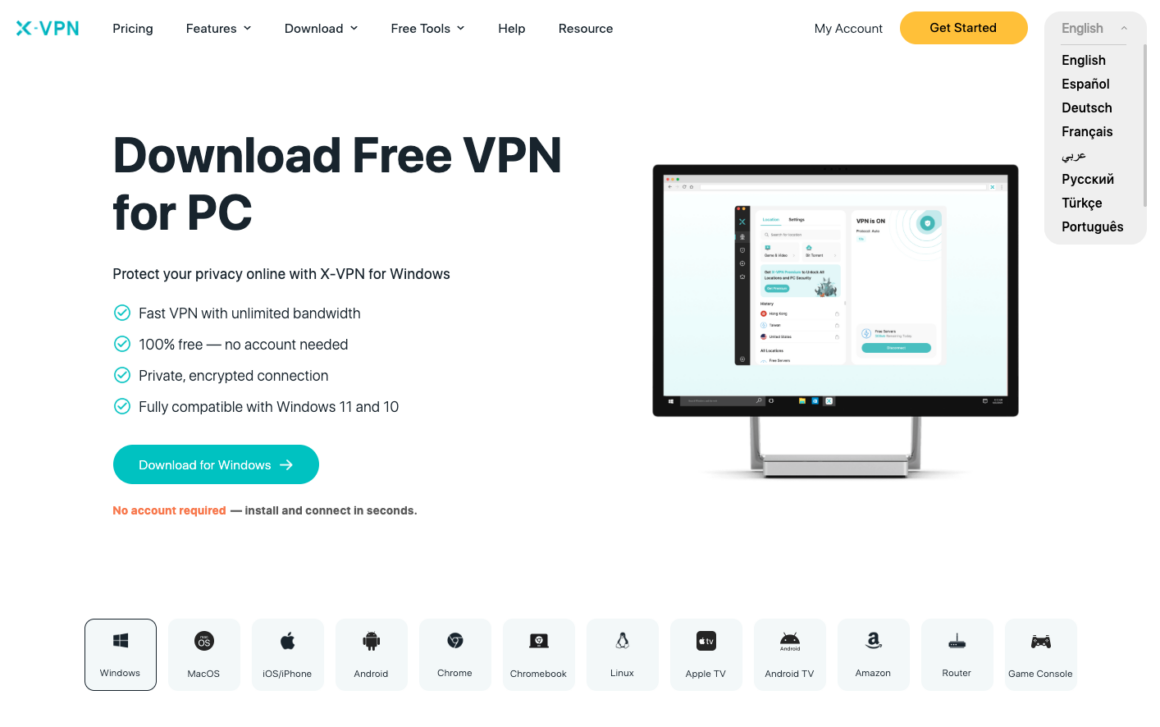
X‑VPN is one example of a consumer VPN service with a Windows application. Its free version can establish a basic VPN connection without requiring an account, although available locations and advanced features vary by version and plan.
Testing before a trip can reveal practical issues as well. Some websites may request another login check when the IP address changes, while a workplace or school may have its own connection rules. These are much easier to investigate at home than when you are trying to finish an urgent task on an unfamiliar network.
Understand which part of the connection a VPN changes
When a VPN is active, traffic from the browser and other online applications will usually follow the route defined by the VPN configuration. The public IP address visible to websites also changes.
Understanding what a VPN does helps separate network privacy from the other settings on the computer.
A VPN does not manage Windows account protection. It cannot enable multi-factor authentication for a Microsoft account or prevent an authorized app from reading a local file. Websites may still recognize you through an active account login, saved cookies, or information you choose to provide.
It helps to think of the settings by function. Windows permissions determine which device features and local information an app can use. Browser settings manage extensions, cookies, and website permissions. A VPN affects the network connection between the computer and the VPN server. Account settings control sign-in and recovery.
Once these responsibilities are clear, you will know where to look when a privacy or connection issue appears.
Keep the browser and software downloads under control
The browser is often one of the first tools used on a new computer. Over time, it also becomes the main place for account logins, file downloads, and interactions with unfamiliar websites.
Syncing data from an old browser is convenient, but you do not have to bring back every extension and setting. Review the extension list first, remove anything you no longer use, and decide which bookmarks, passwords, and browsing data still need to be synchronized.
When downloading desktop software, start with the developer’s official site, the Microsoft Store, or another source you already trust. Advertisements in search results sometimes use titles and addresses that resemble official download pages, so check the domain and installer name before opening the file.
Do not rush through every installation screen. Some programs ask to add browser extensions, change the default search engine, launch at startup, or install an additional application. Keep only the options you understand and intend to use.
Prepare for account and file recovery
Device damage, forgotten passwords, and deleted files rarely arrive at a convenient time.
Important documents can be synchronized with a trusted cloud service or copied regularly to external storage. After creating a backup, open a few files from it and confirm that they are readable. A backup that has never been checked leaves too much uncertainty for the day it is needed.
If Windows device encryption or BitLocker is enabled, confirm where the recovery key is stored. Keep it somewhere you can reach without relying on the same computer. The only copy should not live on the device it may need to recover.
Accounts protected by multi-factor authentication may also provide recovery codes. Store them in a password manager or another protected location. They may be needed if a phone is lost or the authentication app becomes unavailable.
These recovery arrangements require little daily attention. Review them when changing your phone number, replacing a device, or moving important accounts.
Return to the settings after one week
After using the computer for several days, you will have a clearer idea of which programs and permissions are useful.
Open the startup list and look for apps that do not need to run whenever Windows begins. Revisit the privacy settings to confirm that camera, microphone, and location access match the way you actually use the installed software. Remove any programs that were installed for testing and then forgotten.
This review usually takes only a few minutes because the computer is still relatively uncluttered and the recent changes are easy to remember.
Once these checks are complete, the computer can continue working in the familiar way. The browser can save the accounts you need, meeting software can use the camera, and the laptop can connect to everyday services while away from home. You will also have a clearer picture of what each program can access and where to adjust it when your needs change.
About the Author